
How To
In case you need to change the authoring tool of a CAD Document, from AutoCAD to CATIA for example, click on the following button in the CAD Document Profile Card header:

The following window will appear, allowing you to change the Authoring Tool, add an Authoring Tool Version (optional) and a Native File.

Executing the authoring tool change on a CAD Document will automatically trigger the creation of a new version:
- Minor version of the CAD Document, in case the lifecycle state of the CAD Document is "In Preparation".
- Major version of the CAD Document, in case the lifecycle state of the CAD Document is "Approved", "Released" or "Replaced".
Note that the new CAD Document version creation can trigger the creation of a new minor or major version of its related Part.
The new CAD Document version will be created following these characteristics:
- The native file from the previous version of the CAD Document will be retained in the new version only if it is compatible with the selected Authoring Tool (e.g: you change the authoring tool from AutoCAD to BricsCAD) ; otherwise, it will be discarded.
- In case the native file of the previous version is not compatible, you must upload a new native file via the upload arrow (pointing up arrow) in the native file box .
If this CAD Document will be modified later with a PLM CAD Connector, its name should be “STref of this CAD Doc”. Example: ST0123456_01.CATDrawing or ST1234567_02.dwg. - The new version of the CAD Document will be marked as "not connector managed" and will be claimed.
In case you will save it using one of the PLM CAD connectors, it will then be set to connector managed.
Note: This “Change Authoring tool” command will not be available either in edit mode or during the creation of CAD documents from PLM.
Note 2:
Changing the authoring tool to CATIA will automatically update the classification of the CAD Document based on the uploaded native file type:
- .CATDrawing: Mechanical/Drawing
- .CATPart: Mechanical/Part
- .CATProduct: Mechanical/Assembly
Example use case:
A drawing was uploaded first as an AutoCAD drawing. Now, you are asked to create a new version of it, and you want to use CATIA for that.
- First go to the Profile Card of the drawing and hit the button to change the authoring tool.
- Select CATIA as authoring tool, and upload a new CATDrawing, locally saved and previously renamed as “STref of this CAD Doc”.CATDrawing
- Validate, then go to the current version of this CAD Document, and open it in CATIA
- Then, work as usual with your CATDrawing
As a result, you will be able to see in the CAD Document Version history that this CAD Document had several authoring tools.


If you require to quickly review a 3D CATIA model it may be advantageous to use the 'preview in CATIA' command.
This will open documents much faster compared to the standard method of opening native files in CATIA, or even opening the converted STEP files into SpinFire Ult desktop viewer.
Whilst documents can be opened as equally quickly in the integrated PLM web viewer, this program has limited analysis capabilities. So depending on the requirements 'preview in CATIA' may be preferable. This option also allows you to quickly merge several models in a single scene in CATIA.
Note, opening a document as a preview should only be done if you require read access. If any changes are necessary, the document should be opened fully through the 'normal' methods.
Opening method:
Any 3D CATIA file can be previewed in CATIA by pressing the usual CATIA icon from the dashboard or profile card header  and selecting the 'open as Preview in CATIA' button in the open options menu. If a CGR file is unavailable and waiting to be generated, it will be greyed out and a message will state that the CGR is not available yet. If a change has been made to the document and a new CGR file is being generated, a warning message will be displayed to warn you that the old CGR may be obsolete. Equally, this button is unavailable for drawings.
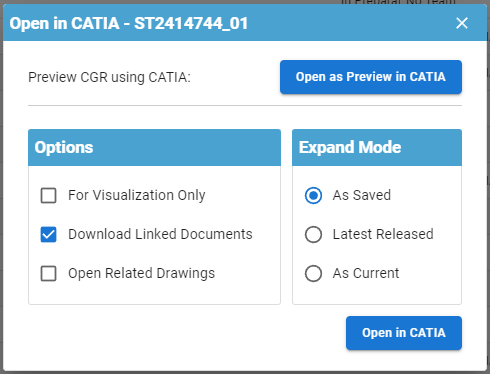
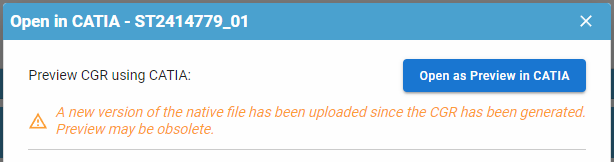
The file will be opened in a new window in CATIA. This will be displayed as 'Not in PDM' and you will be prompted to save them as new document numbers if you try to save. Please do not do this.

Please note, this method of opening differs from the 'for visualization only' option. The 'visualization only' simply renames the filename so it is not recognised by the connector, however it is still opening the native CATIA file type. This means it will be no quicker to load but you will be able to see all the modelling steps used to create the final model. Opening for preview uses a different filetype, CGR, which is much lighter and quicker to load, however you will only see the final model and you will not be able to interrogate the modelling steps.
Both methods can be used to open different versions of the same document number.
More:
Its important to know if your CAD structure contains 'non latest' versions of CAD Documents, especially if you need to work with the latest data, while the latest data might be available in SmarTeam only. Within the PLM and CATIA connector there are various ways you can check this.
- Through the use of dot icons in CATIA:
Orange, red and purple dot icons can be added to the standard CATIA symbols to indicate if a document is out of date. See this FAQ for more information on icons.
 |
Orange Dot: Not latest. At least one newer version exists only in SmarTeam (and not yet in the PLM). Note, the SmarTeam data sync process will occur each night, so the orange dot will appear the day after new SmarTeam data is created. |
 |
Red Dot: Not latest. At least one newer version exists in the PLM, but all versions are available in the PLM. |
 |
Purple Dot: The CAD document has out of date dependencies. |
- Through the 'Check dependencies' window in the PLM:
From a CAD documents profile card, it is possible to open up a tree structure of the CAD and check if any of the dependencies are ‘not current’. Click on the icon shown below in the profile card header.

The new opened window will use the same colour code as used in CATIA and described above to highlight if a document is out of date or has out of date dependencies. There is a counter on the right-hand side to total how many documents are ‘non-current’, either due to new versions available in the PLM or SmarTeam.

There are different filters available on the right, and a filter search field at the top. This box will filter for both document number and description.
- Through the PLM profile card header:
When viewing an individual CAD documents profile card, information will be displayed in the header if it is not the latest.
- If there is a new version available in the PLM (red dot), the following text will be displayed with a link to the latest version in the PLM:

- If it is the latest in the PLM but there is a new version available in SmarTeam (orange dot), the following text will be displayed:

- If its both not current in the PLM and SmarTeam (orange dot), there will be a link to the latest version available in the PLM, but it will also state there is an even newer version in SmarTeam:

- Through the CAD document attributes 'Is Current' & 'Is Current in SmarTeam'
When searching for CAD documents, or viewing them in a relationship grid from a profile card, you can see the 'Is Current' (in the PLM) & 'Is Current in SmarTeam' attributes

Design Codes are used within the PLM to grant users access rights to documents.
Within a Design Code there are different roles, which provide different access rights. A user can hold more than one type of role within a single Design Code.
|
Role |
Significance |
|
Viewer |
Read only access rights. |
|
Contributor |
Access rights to view, create and edit. Users with Contributor role can also launch Design Verification Workflows. |
|
Design Reviewer |
Rights to perform the ‘Design Documentation Check’ activity of the Design Verification Workflow. The Design Reviewer verifies and reviews designs making sure they are conform to the CERN design standards, inspects them, and adds annotations in a viewer without necessarily needing access to a CAD system. |
|
Equipment Owner |
Rights to perform the ‘Part Design Approval’ activity of the Design Verification Workflow. The Equipment Owner is responsible for checking that the requirements of the design are met. |
|
Senior Integrator |
Rights to launch ‘Valid for Integration’, ‘Approved by Integration’ and ‘Release for Integration’ workflows. |
| Viewer approved |
Users in this role will only be granted access to view the object, once it is in approved status. |
| Viewer released |
Users in this role will only be granted access to view the object, once it is in released status. |
The PLM can be opened through the Desktop app or in a web browser. The table below details the supported web browsers for different operating systems.
| Operating System | Supported Browsers |
| Windows 10 | • Edge • Firefox 78 ESR or 91 ESR • Chrome 103 (minimum) |
| Windows 11* | • Edge • Firefox 78 ESR or 91 ESR • Chrome 103 (minimum) |
| MacOS 10.15 Catalina | • Firefox 78 ESR or 91 ESR • Chrome 103 (minimum) |
* Whilst the PLM is supported in windows 11, CATIA currently is not. Therefore, if you need to use CATIA for any reason please ensure you are running windows 10.
There are three main different CATIA configurations that can be selected from the drop down in the CATIA launcher menu, small, large and equipment systems. Below details the main differences in their set up:
- Small Assembly – Cache is deactivated so all parts are opened in design mode, resulting in them taking longer to load. The 3D Tessellation accuracy is higher than in the large setting. Assembly updates are automatic.
- Large Assembly – Uses cache so parts are opened in visualisation mode. To edit, or view at a greater accuracy, the parts must be manually activated into design mode. The 3D Tessellation accuracy is lower than in the large setting. Assembly updates are manual.
- Equipment systems – The settings are primarily the same as the large except the assembly updates are automatic. There is also a difference in the available workbenches. Equipment systems contains two extra workbenches; HVAC design and piping design. However, it also has one removed, raceway design (an electrical cabling discipline).
- Large assembly- Beta - Uses the same settings as large assembly with a few modifications to improve CATIA's stability when working with very large models. The Q-checker is not available in this configuration.
Edit rights to a document is controlled via its Design Code and Responsible Project Group (RPG), which is set on its Parent Part. If a colleague requires edit rights to all the documents with one of these attributes, they should request access to these groups via the appropriate e-group. (Note you only need to belong to one of these groups to edit the documents, but you must belong to the Design Code contributor group to be able to edit the documents and initiate a validation process [Design Verification Workflow]).
However, if your colleague only needs to edit one particular document you can use the ‘Shared edit rights’ feature. A person with access to the document can use this feature to grant edit rights to another user on select documents, rather than all documents in a project.
On the profile card of the document navigate to the ‘Shared edit rights’ tab. From here use the add relation button to add the user that requires access. This person will be given contributor rights to this document only.
On the profile card of the document, in the ‘Shared edit rights’ tab, use the add relation button to grant your colleague edit right to this document only.

This feature is also available from a Part profile card. This will provide edit rights to the Part, but not to any of the CAD documents under it.
There are two ways of retrieving all the objects that you have claimed.
- Method one is to use the dashboard. From either one of the specific tabs (e.g CAD documents) or the All tab, click on the 'claimed by me' filter at the top. This will filter the results of the tab to show only objects that you currently have claimed.

- Method two is from a regular PLM search window. From the table of contents navigate to one of the objects, such as Part, and from here you can open a search window for this object type. Use the column 'claimed by' to filter documents claimed by you. The flag column confirms that these objects are claimed by you, through the presence of a green flag. (Note the column order is customisable to user preferences through drag and drop, so yours may differ from the screenshot below)
To unclaim all the objects in one go, use method 2 and highlight the results. (Press and hold the Ctrl key to select individual results. Alternatively, select a result then hold down the shift button and select another result, this will highlight all the documents in between.)
Once the required documents are highlighted right click to bring up the contextual menu. Click 'unclaim', to unclaim all the highlighted documents.

The CERN Drawing reference (CDR) on a drawing is usually generated from the Design Code applied to its parent Part.
However, on non-master drawings only, it is possible to apply a CDR that is not based on the parent Part.
This is to allow a drawing to be created with additional information that is not necessarily related to the main project, without affecting the access rights to the document. The access rights are still inherited from the parent's Part Design Code, and are unaffected by the differing CDR prefix.

To assign a CDR on a drawing from the title block editor press 'get new'. This will open the window shown below, where the design code used to generate the CDR needs to be confirmed. By default the design code used on the Parent part will be shown, but another can be chosen using the drop down button. Please note, only design codes where you are have the Contributor, Design Reviewer, Equipment Owner or Senior Integrator role will be shown.

For master drawings the design code selection is greyed out. To change the design code, and resultant CDR, on these drawings the design code must be changed on the parent Part first.

CATIA customised settings, such as shortcuts, can be saved in the PLM dashboard to be used when CATIA is reopened. This is also true for PWB setting changed in the options toolbar.
To save new customised settings, close the CATIA session in which the changes were made. Press the cog icon on the CATIA launcher to open the CATIA configurations window.

Enter a name for the new settings configuration. It will be saved and stored under one of the three main configurations that the CATIA session was originally opened under, and the settings were changed in.


Note the setting name may only contain alphanumeric characters and spaces, and be a maximum length of 64 characters. Configuration settings can also be deleted from this window by pressing the bin button next to them.
More: FAQ
To open a 3D CAD document in Spinfire Ultimate there is an icon available on each Profile Card. It is located on the thumbnail (the lower one, whilst the upper icon is used to display the web viewer): Open in Desktop Viewer.

The first time you click on this icon, a new SpinFire Ultimate instance (window) will be launched, and your CAD file will be open there.
If you later open a second CAD document in the viewer through the 'Open in desktop viewer icon', a pop up menu with appear:

"--> Open in a new window" will launch a new SpinFire instance:

"--> Open in a new tab in the first window" will open the selected CAD Document in a new tab of the FIRST instance of SpinFire that was launched.

"--> import to the active tab of the first window" will merge the selected CAD Document in the active tab of the FIRST instance of SpinFire that was launched:

With this last option, it is possible to merge multiple CAD documents that were made with different CAD authoring tools (ex: REVIT & CATIA V5).
The origin axis systems of all CAD Documents will all be coincident. But it is possible to move some components using the Transform dialog box.

Note: PLM desktop must be running, even if you are browsing the PLM using your web browser.
More about how to use SpinFire Ultimate: FAQ
In most situations all master CAD documents in a CAD structure are contained in the assembly’s BOM. However, there is a valid use case where this is not true.
For example, a component in a structure will be manufactured from a standard SCEM part, such as a long tube. The component is ‘Master’, but very simple and does not require its own drawing (dimensions will be placed on the assembly drawing). Rather than putting the modified CAD part in the BOM, the SCEM part is included instead to aid purchasing and manufacturing. See the example below.

To create a BOM structure that includes the Part of CAD C instead of CAD B, we can use the ‘marked as’ attribute in the PLM. There are different properties that can be applied to this attribute which alter how Parts are shown in the parent assembly BOM. The four different options are, ‘ ‘ (default), ‘IN-BOM’, ‘Not IN-BOM’ and ‘Phantom’. For this use case we will use the ‘ ‘ (default) and ‘Not IN- BOM’ property, but you can read more about the other attributes through the link at the bottom of this ‘How-to’.
The image below shows how to alter this property in CATIA. Select the document you want to change, then open the PDM properties window by selecting the icon on the connector toolbar. From here, there is a drop-down list to select the required marked as attribute.

For our structure above, we can set CAD B to ‘Not IN-BOM’, therefore it will not be included in BOM A. CAD D is left at the default option, meaning that because it is a master document, its Part will be included in BOM A. Finally, to add Part C this must be done manually in the PLM by following the steps below, but for more information please read the FAQ linked at the bottom of this page.
- Open the profile card of Part A. Put it into edit mode and navigate to the BOM tab at the bottom.
- Click on the ‘Add Parts’ button.
- A query box will be displayed, search for Part C and press ok.
- The part will be added to the BOM table.
It will be highlighted as manually managed. In addition, the quantity and position override boxed will be ticked as they cannot be computed from the CAD structure. The position box can be left empty, meaning it will be assigned the next available position, or a value can be provided. - If required, modify the quantity value. By default, it is set to 1.
- Click done on Part A’s profile card to save the changes.

Part A’s BOM is now updated and includes the required parts. The schematic below shows the resultant BOM structure compared to the CAD structure.

It is important to note, when creating a workflow to verify the structure, Part B must be added as a root object of the workflow, else it will not be approved and remain in preparation as a baseline.

BOM management FAQ: BOM management in CATIA / PLM
To comply with ISO Standards that has been implemented in the PLM platform, the Drawings Lifecycle States have been updated in EDMS after the data was synchronized with the PLM.
ISO 11442:2006 specifies a limited set of Lifecycle States, each with a specific meaning:
| In Preparation |
Default state for new object version. The object is being worked on. |
| In Review |
The object is in ongoing validation process. The object has been prepared and is subject to review, endorsement, checking and approval. |
| Approved |
The object is suitable for release but is not yet officially Released for its intended use. If a newer major revision is Approved, the previous one automatically becomes Replaced. In other words, only one Approved Major Revision is allowed. |
| Released |
The object has been prepared, reviewed, checked and approved. The object is allowed to be used for its intended purpose, meaning that the required item function has been validated. If a newer major revision is Released, the previous one automatically becomes Replaced. In other words, only one Released Major Revision is allowed. |
| Replaced |
The object is still available but has been replaced or superseded by another. |
| Withdrawn |
The object is no longer available as an active object. A withdrawn revision of an object is a revision that must no longer be used for any purpose. The transition to Withdrawn should be done with a specific workflow |
| Approval Rejected |
This lifecycle state, not compliant to the ISO standard, is needed to manage few special cases related to old migrated data. New data can not reach this lifecycle state. |
You can find the complete mapping in this presentation.
Some objects are classified as either Catalog or/and Standard components. All standard components are Catalog Components, but not all Catalog Components are Standard.
Both types are components that can be bought from a supplier catalog, as apposed to specifically designed for a CERN project. However, Standard components are compliant with standards such as ISO or DIN. They can be bought from any supplier so typically do not contain supplier information on their profile cards (some exceptions exist).
Both types of documents can easily be identified in the PLM by checking the two distinct properties; ‘Catalog component’ and ‘Standard’. These properties are attributed to both the CAD document and the Part. They are searchable in the PLM Dashboard and PLM search windows as shown below.
This said, some standard components are not flagged as such, for historical reasons. If you want to make an exhaustive search, we strongly recommend you to use the "Catalog Component" property only.


Additionally, the properties are shown in the PWB connector query window.

The properties are shown in the profile card header of both the CAD Document and Part.

For information of how to search for catalogue components that have a space in the document number, read the following how to :
How to search for documents with a space in the name?
See other 'searching' how-tos here
Short answer:
When searching in the global search box on the dashboard, you must put document numbers containing a space in quotation marks.

Long answer:
CAD Documents can be searched for either in the Dashboard or the dedicated CAD Document search window. In both windows there are different columns where filters can be applied to narrow down a search. For example you can specify a document number as shown below (simply enter the document number, no need for special characters).

On the Dashboard there is the additional option of using the global search box at the top, which will check in the following properties: Definition, Document Number, CERN Drawing Reference and External Reference. However, note that the settings of this search box are different to those of the the filter boxes. In this search box a white space ( ) is seen as an "AND" operator.
Therefore, for components which contain a space in the middle of the document number, in order to retrieve results you must place the 'number' inside double quotation marks (""), as seen in the first image.
To help with the transition from SmarTeam to PLM, we have put together a comparison between the different Specification tree icons. Some have remained the same, but others have changed or are new. Also note, previously with SmarTeam, the icons were viewable on both assemblies and CATParts. Using the PLM, they are viewable on assemblies only and CATParts open in their own window will have no PLM status icons.
|
Specification tree icons |
|||
|
PLM |
SmarTeam |
||
|
Name (nom) |
Icon (symbole) |
Name (nom) |
Icon (symbole) |
|
Unknown |
|
Unknown |
|
|
N/A |
N/A |
New |
|
|
Claimed by you |
|
Checked out by you |
|
|
Claimed by another user |
|
Checked out by another user |
|
|
Unclaimed |
|
Checked in |
|
|
Not latest |
|
Not latest |
|
|
Out of date dependencies |
|
N/A |
N/A |
|
Dirty status |
|
Dirty status (geometry) |
|
|
Not Synced |
|
Modified metadata |
|
|
Approved |
|
Released |
|
|
Released |
|
N/A |
N/A |
|
Replaced |
|
N/A |
N/A |
|
Withdrawn |
|
Cancelled |
N/A |
|
N/A |
N/A |
Obsolete |
|


Note, the lifecycle states do not correspond.
For more information on all the PLM/CATIA icons, please see the following documentation, FAQ.
Icons are used throughout the PLM and in the CATIA specification tree to quickly convey information. See the documentation below to find the explanation of each icon.
More: FAQ
A CAD document is made up of data, metadata. Some of this comes from CATIA such as the geometry, mass and material. Some of it comes from the PLM, Design code and RPG.
Two pieces of metadata can be changed in both the PLM and CATIA, the CAD definition and description. These two properties are mapped in both directions so can be modified in either platform and the data will be updated in the other. However, its important to understand when this information is transferred, so as not to loose any data.
- Data is pushed from the PLM to CATIA when a document is first opened.
- Data is pushed from CATIA to the PLM when a document is saved.
Why this is important?
If you have a document open in CATIA and change either the CAD definition or description in the PLM platform, these updates will not be pushed to the already open document in CATIA. The CATIA data will not be updated. Therefore, if the CAD document is subsequently saved in CATIA, the 'outdated' CATIA data will be pushed to the PLM overwriting the previous change.
Therefore, please do not change a documents metadata in the PLM if the document is already open in CATIA. Please do the changes in CATIA.
Note: If a document is modified in the PLM whilst it is open in CAD, when the CATIA tree is refreshed the definition will be updated because this displays data directly from the PLM connector. However, the CATIA data is not updated. This can be verified by viewing the data via right click > properties.
The batch import tool (drag and drop) can also be used to create new versions of CAD Documents already saved in the PLM.
To create a new version, in the 'Version a CAD document' column enter an existing document/Part number, or a CERN drawing reference number. Alternatively, by double clicking on the cell a search box will appear. From here you can search and filter to find the existing document you would like to version.
If a valid document is found, the version column will be populated with the document number, latest version and definition. In addition, some of the other columns will be automatically filled out with the metadata from the previous version, for example the sheet size and orientation. However, these can be modified if required.

Please note this feature can only be used with manually managed documents.
Once the import is launched, a new version of the document will be created and attached to the existing Part. The type of version (major or minor) is dependent on the lifecyle state of the previous version. Documents in a frozen state will have a major update, otherwise a new minor version will be created.

If you have multiple workflows to create, that will use the same properties (e.g workflow behaviour, drawing label & reviewers) it’s possible to create a workflow template so the properties do not have to be repetitively assigned.
- Optional: Create a new part for each workflow template you would like to create. The name of the part can be used to give a description of the workflow attributes, to help you keep track of your different templates. These parts can be stored in a folder.

- Create a Workflow as standard and fill out all the desired attributes.
- Favourite the workflow using the star in the header.

- All favourited workflows can be found under the Change items in the TOC. If you un favourite them, they will be removed from this shortcut.

- When creating a workflow to validate your new documents, use the ‘apply workflow template’ button below. This opens a new window where all the favourited workflows are shown, including the various attributes so they can easily be differentiated. Press the button on the left to apply the template, and the attributes will automatically be set.
(Please note: If reviewers are set using the template they are still subject to access rights. These will be checked during the precondition workflow)


More: Design Verification Workflow FAQ
The official CAD tool at CERN for 3D design is CATIA V5. However, the PLM can be used with AutoCAD, BricsCAD, Inventor and REVIT by installing the relevant connector.
Please note there is no support at CERN for the use of these applications, only the installation and usage of the connectors.
Installation steps:
1) Install the 'CERN - PLM Desktop' via CMF.
2) Install the desired CAD package via CMF. If this is not available please contact the service desk with your PC name.
3) Once the CAD package is installed the relevant connector package should be available in CMF. This should be installed. When the CAD package is opened for the first time with the connector you might need to accept the plugin activation.
For more information on the installation steps, and the versions of the CAD software that are supported by the connector, please read the following documentation.
The order of the BOM is determined by the CATIA tree. The BOM is built based on the positions and quantities in the CATIA tree, using a top-down approach.
Please note:
- Only CAD Documents identified as 'Master' 'Representation type' are automatically included in the BOM. See the full FAQ to understand how to manually add documents of alternative 'representation types'.
- The first instance of a reference found in the tree structure is what determines its position in the BOM.
There are manual ways to override the CATIA positions & quantities, for further information on this see the FAQ below. However, you can also simply reorder the CATIA tree to order parts in the BOM as you desire. Use the 'Graph tree Reordering' function in CATIA to easily move the parts around.
The third button in the window can be used to move the part quickly next to any other, by selecting one in the list. Note when moving a part down from its current position, it will be placed under the document you select. When moving up, it will be placed above.

A BOM can be projected onto a drawing using the Title Block Editor (TBE).
When you click on the Title Block Editor icon in CATIA V5,  it will open in a new window. The BOM can be found in the second tab, called “Bill of Materials”.
Check the “Bill of Materials” box to add the BOM to the title block of the drawing. Then click on “Generate & Save” to add the BOM and the title block to the drawing.

More: Title Block Editor FAQ
Further: BOM management in CATIA / PLM
Regular Titleblock stamp:
Case 1: you are working at CERN with an official CAD tool and a PLM Connector (ex: BricsCAD, CATIA etc…).
Thus, you must generate an official CERN Titleblock on your Drawing prior to validating it. Then when a Design Verification Workflow is launched and the Drawing is Approved, this Titleblock will be stamped:
- The banner “Draft for discussion, not valid for execution” will be removed,
- The name of the person(s) who approved the drawing will be added, as well as the date of approval.
- The label defined in the Workflow (ex: For Execution, or For Tender…) will replace the default “Not Valid For Execution”.

Regular CERN Titleblock before validation.

Regular CERN Titleblock after validation.
Mini Stamp:
Case 2: you are not using a PLM Connector, does not matter if you are working at CERN or outside CERN, and you are uploading a native file only.
Examples:
- you are working at CERN with a CAD tool for which there is no connector, therefore no Titleblock Editor, but the format is supported by the PLM,
- you are working at CERN with a CAD tool for which there is a connector, but you chose to not use it,
- you are working in a sub-contractor design office with AutoCAD or BricsCAD, not on the CERN site, thus you do not have access to the CERN connectors, but you have access to the CERN PLM via the web interface,
- you are working at CERN and you receive some drawings as PDF or as DWG from another institute, a contractor etc… that you must upload in the PLM as native file,
For all these cases, it is not possible to have a CERN Titleblock on these drawings, first either because the Titleblock Editor is not available, or because there might be already a Titleblock from another company.
As a result, the regular stamping described in case 1 cannot be done.
Instead, the system will put in place a mini-stamp, which position is customizable, and that will contain the most relevant information (name of the persons who controlled the drawing, date, Label, Reference…).

Mini stamp.
Case 3: you manually upload a viewable file in addition of the native file.
In such a case, does not matter if the native file is connector managed or not, or what the native file type is, the viewable file will always be used for the stamping, with the mini stamp.
Example:
- you are working at CERN with AutoCAD or BricsCAD, and you are working with a multi-sheet drawing.
This feature is not supported by the CERN Multicad connector. But you can save the Native file (*.dwg) via the CERN connector and upload the multi-sheet drawing as a viewable file previously exported as a pdf.
Note: This is not possible for CATIA Drawings.

Native File and Viewable File properties on a CAD Document Profile Card.
- You are working with an authoring tool not supported by the PLM, you upload the native files in a zip file, then, you can upload a pdf as a viewable file.
Said otherwise, as soon as a viewable file is manually uploaded, this viewable file will be used for the stamping, and in that case, a mini stamp will be applied.
In the case that the Drawing was CERN Connector managed, and even if there is a CERN Titleblock generated with the CERN Titleblock editor, this Titleblock will not be used for the stamping, and the mini stamp only will be filled after the validation.
In such a case, it is normal that the banner “Draft for discussion, not valid for execution” remains visible on the bottom right corner.

The position of the mini stamp is defined via the “Design Office” property, that sets a specific position for the mini stamp for each drawing format (A0, A1…).
As a result, this property becomes mandatory and must be filled for any Drawing that is not Connector managed or for which there is a viewable file uploaded.
To see the position that will be applied, from the CAD Document profile go to the Detailed information tab and locate the Design Office property in the Titleblock info & 2D information block.

Click on the link to open the Design Office Profile Card, then check the positions in the relationship grid at the bottom.
The origins are the bottom left corner of the drawing and the bottom left corner of the mini stamp. The units are millimetres.
For instance, in the picture below, we can see that the position of the bottom left corner of the mini stamp for a A4 drawing that is using the EN-EL Design Office property, will be at 30mm of the left edge of the sheet, and at 252mm of the bottom edge.

The first part of the FAQ linked below will show you a quick method of saving a CAD document without dependencies, like a CATPart. The second, more detailed section will describe how to save a structure where the files are linked to each other and will explore the different options available to you from the connector. The final part will explain you how to duplicate a CAD structure.
Please see the video below detailing the first scenario.
More: FAQ
The PLM uses an automatic engineering BOM (EBOM). This means every time you save an assembly the BOM will be created/updated on each 'claimed' or 'new' assembly node.
The BOM uses the positions and quantities of the instances in the CATIA tree, using a top-down approach.
Please note:
- Only CAD Documents identified as 'Master' 'Representation type' are automatically included in the BOM. See the full FAQ to understand how to manually add documents of alternative 'representation types'.
- The first instance of a reference found in the tree structure is what determines its position in the BOM.
- There are manual ways to override the CATIA positions & quantities, see the FAQ below.
You can also trigger a forced manual BOM synchronisation at any time from the “More” menu of the CAD Document profile card in the PLM platform.

The Approved By Integration Workflow can be created from the CAD Document profile card.
There are few basic pre-requirements that the CAD Document must fulfil:
- The CAD Document needs to be in “In Preparation” lifecycle state.
- A Design Code needs to be assigned to the CAD Document through the Part.
In the Profile Card of a given CAD Document, the workflow can be created by selecting the "Create New Workflow" button:

You then need to choose the assignee of the "Design Documentation Check" activity and set the group responsible of the "Review by Approval Group" activity.
Once this is done, the preparation of the Workflow can be finalized by using the "Done" button:

Then launch the Precondition Checks and if you don't meet any issues during this step, you can launch the Workflow. In case there is a precondition check that "FAILED", a specific error message is included for this precondition to help you correct the problem.
As result of the Workflow, the root object and its dependencies will evolve to Approved status.
Complete documentation: Approved By Integration Workflow FAQ
The Approved by Integration Workflow is used to approve Conceptual Drawings and 3D Models, or the envelope of a given equipment.
Its aim is the validation of positions related to functions and beam line equipment, plus reserving space for the development of future equipment.
This Workflow operates on the Integration CAD Structure, meaning the Integration Assembly itself and all its CAD Dependencies, or the Integration (Layout) Drawing.
For this reason, it can only be launched by users holding the “Senior Integrator” role.
The Approved by Integration Workflow is composed of two mandatory control activities that happen “In Series”:
- Design Documentation Check
- Review by Approval Group
Complete documentation: Approved By Integration Workflow FAQ
The CERN PLM can be connected with multiple CAD tools, including REVIT, so that all CERN CAD data is managed in a single enterprise PLM system.
You must first save the project in a local folder. This can be done before launching the save in the PLM, or it will be prompted at the first step. The filename that you set will be used automatically by the connector for the Document Definition. (Once the file has been uploaded in the PLM, the local file created just before must not be edited anymore and can be deleted).

This icon triggers the save of a new project in the PLM. The process will create a link between your project and a Part (existing or to be created).
For more information on the linking of the project to a Part, and information on the connector, please see the following documentation.
The CERN PLM can be connected with multiple CAD tools, including AutoCAD, so that all CERN CAD data is managed in a single enterprise PLM system.
You must first save the file in a local folder before launching the save in the PLM. The filename that you set will be used automatically by the connector for the Document Definition. (Once the file has been uploaded in the PLM, the local file created just before must not be edited anymore and can be deleted).

This icon triggers the save of a new document in the PLM. The process will create a link between your CAD Document and a Part (existing or to be created).
For more information on the linking of a CAD document to a Part, and information on the connector, please see the following documentation.
Ultimate SpinFire is a program that can be used to open CAD Documents saved in a range of file types. It can be used to perform different types of analysis and rendering options, these include;
- Measuring
- Cross-section
- Exploded view
- Rendering Views
For more information on these topics please read the following documentation.
More: How to use SpinFire ultimate as an advanced visualization tool for CAD data?

Manually imported CAD documents cannot be versioned automatically via a connector. Versioning must therefore be done manually in the PLM once the necessary modifications have been made to the CAD document.
The process to follow can be found in the following documentation
Please follow the necessary training before using the PLM. You can access the training and learning path here, this will help you identify what training is necessary for you depending on your previous experience and knowledge.
Training on the CATIA-PLM connector (PWB) is a prerequisite to being granted access to CATIA via the PLM. Once you have completed the training please complete this form to request access to the PLM and CATIA connector.
Prior to having the access rights, you will receive an error message when attempting to launch CATIA, and you will not be able to view the connector package in CMF. Please complete the form above.

If you would like a refresher after completing the training please see the document at the bottom of this page, it explains the basic concepts to help you get started. Also see the video below which walks you through the basics steps of using the CATIA connector, such as opening and saving a document.
For more information on some of the steps covered in this video, please see these dedicated how-to's.
- How to access CATIA via the PLM?
- What's the difference between the different CATIA configurations?
- How to search using the PLM dashboard?
- How to open a CAD document from the PLM?
- How to open a CAD document from CATIA using the connector?
- How to save a new CAD document in the PLM from CATIA?
- How to book a specific CERN Drawing Reference before the creation of the Drawing?
- How to set an existing CERN Drawing Reference (CDR) to a new Drawing?
More: FAQ
The Withdrawal Workflow can be created from the Profile Card of Parts, CAD Documents and Documents.

You can then generate the "Precondition Report" that checks the following pre-requirements:
1. You must hold at least one of the following Roles in the Design Code set on the Root Object:
- Contributor
- Equipment owner
- Configuration Manager
- Senior Integrator
Or be member of the Responsible Project Group.
2. That the lifecycle state of the objects affected by the Workflow is not "In Review"
Complete documentation: Withdrawal Workflow FAQ
The Withdrawal workflow is used to withdraw a Part (and all its content), a single CAD Document or a single Document.
According to ISO standards, once withdrawn, an object is no longer available as an active object.
A withdrawn version of an object must no longer be used for any purpose. This means it will not be possible to approve or version any object containing a withdrawn object.
Complete documentation: Withdrawal Workflow FAQ
The Release Workflow can be created from the Part Profile Card.

You can then generate the "Precondition Report" that checks the following pre-requirements:
- Part needs to be in "Approved" or "Replaced" lifecycle state.
- The initiator of the Workflow needs to have the Equipment Owner role in Design Code set on the Part
If all them are fulfilled, you can launch the Workflow that will make the lifecycle state of the Part evolving to Released.
Complete documentation: Release Workflow FAQ
The Release workflow is used to declare that a given Part (and its BOM) is allowed to be used for its intended purpose, meaning that the required item function has been validated.
A Part should be Released when the first asset created from this design is accepted.
Complete documentation: Release Workflow FAQ
To locate, view or open files of SmarTeam(ST) CAD Documents through the PLM platform, follow the subsequent steps.
1. Optional prerequisite to enable the opening of STEP files of ST CAD Document directly into SpinFire Ultimate:
Install the software below from CMF. These are available on any CERN Windows machine.
- CERN - PLM Desktop
- Actify SpinFire Ultimate
Note: There is an embedded viewer in the PLM to allow users to view the documents without installing Actify SpinFire Ult., but for a comprehensive review of a document Actify SpinFire Ult. is required.
For the subsequent steps, use either the PLM Desktop app (open the PLM website as shown below), or open the following link in any web browser, https://plm.cern.ch/. However please note, to open a file directly into SpinFire Ult., the PLM desktop must be running. An explicit error will be returned if it is not.

2. Search for the document in the PLM
2.1 It’s recommended to search for a document through the Folders (ST Projects) and Parts (ST Items) it is in, rather than directly, as these queries load much faster and have improved accuracy. Access these search boxes through the table of contents on the PLM Website (or webpage), as shown below.
Note: the Part (Item) reference can easily be deducted from the ST CAD Doc reference: just remove the _ and the 2 last digits
ex: CAD Doc ref :ST1234567_01 -> Part ref: ST1234567

2.2 Query for the desired Folder or Part using the filter fields. Double-click to open the object in its own window.

2.3 Navigate to the document from the Folder or Part window.
The contents of both objects are shown as icons under the main information boxes, click to open them in their own window. Alternatively, navigate using the ARAS grid and different tabs at the bottom of the window as shown in the images below.


2.4 Ensure you open the required revision of the document. A warning will be displayed in the header of the profile card if it is non-latest, with a link to the latest revision.

3. The 3D data of a CAD Document can be viewed from its Profile Card.
- For quick visualisation there is an embedded viewer window on the right-hand side of the window (installation of Actify SpinFire ult. is not required to view this).
- For a more in-depth review, the data can be opened in the local default CAD viewer using the button below (SpinFire Ult. if installed and the PLM desktop is running).
- To download a .stp file of the document, press the arrow in the top box and choose the filetype from the dropdown list.

4. For a drawing, the 2D data can also be viewed on the Profile Card.
- For quick visualisation there is an embedded viewer window on the right-hand side of the window.
- To download a .pdf file of the CAD Document, press the arrow in the top box and choose the filetype from the dropdown list.
- If it is saved in EDMS, there is also a link to this area.

For more information on how to use SpinFire Ultimate please read the following documentation.
FAQ: SpinFire Ultimate
In order to be able to delete an object from the PLM platform (whether it is a Part, a CAD document, a non-CAD document or a Folder), there are a number of requirements that must be met.
All these requirements and the necessary steps are explained in the FAQ below:
The Fast-Track Promotion Workflow can be created from the Part Profile Card.

You can then generate the "Precondition Report" that checks the following pre-requirements:
- Part needs to be in "In Preparation" lifecycle state.
- The initiator of the Workflow needs to have on of the following roles in Design Code set on the Part:
- Equipment Owner
- Senior Integrator
- Configuration Manager
If all them are fulfilled, you can launch the Workflow.
Complete documentation: Fast-Track Promotion Workflow FAQ
The Fast-Track Promotion can be used to approve the Part without going through a Design Verification, in case the Master CAD Documents are in Approved/Released state.
Once the Part is Approved/Released, you may have the need to just attach to the Part additional documentation, without modifying the Master CAD Documents. In such a case, you need to:
- Version the Part.
- Attach the additional documentation needed.
- Promote the Part by using the Fast-Track Promotion, without going through a formal signature process.
Complete documentation: Fast-Track Promotion Workflow FAQ
It is not possible to validate a single CAD Document in the PLM platform.
The Design Verification Workflow acts on the Part and collects all the CAD Documents and Documents attached to the Part, plus its BOM.
Complete documentation: Design Verification Workflow FAQ
The "Replace By" command can be accessed directly from the profile cards of the following object types:
- Parts
- CAD Documents
- Documents
The command is accessible from the "More" menu  .
.
Please note that the name of this command adapts according to the object from which this command is accessed from. Below shows the "Replace CAD" functionality, available from the CAD Document profile card:

This action opens a popup window from which you will be able to search for the object that replaces the "original" one:

As a result:
- The lifecycle state of the "original" object transitions to "Replaced".
- The Profile Card of the "original" object displays information about the object that replaces it, including a direct link to this replacement Profile Card.

For more information, and explanation of the propagation of this tool, please see the following documentation.
There are few basic pre-requirements that must be fulfilled for being able to perform an Assign Drawing(s) Label Workflow.
CAD Documents set as Root Objects must:
- Be of type "Drawing".
- Be in "Approved" or "Released" lifecycle state.
- Have a Design Code assigned through the parent Part.
Additionally, the initiator of the workflow must hold the "Equipment Owner" role in all the Design Codes set on the Root Objects.
Complete documentation: Assign Drawing(s) Label Workflow FAQ
The Assign Drawing(s) Label Workflow can be created from CAD Documents of type Drawing:

Once the Change Item profile card appears, fill in its Description and choose the Drawing Label you need to apply:

You can change the Label of multiple Drawings with the same Change Item.
To do that, you simply need to add the Drawings by accessing the "Root Objects" tab from Workflow profile card, and selecting the highlighted icon:

You can then launch the Workflow by using the following icon from its Profile Card header:

Please note some of the precondition checks below:
- Check that the user launching the workflow is an 'Equipment Owner' in the Design Code set on the Root Object(s).
- Check that all drawings are in Approved state.
Complete documentation: Assign Drawing(s) Label Workflow FAQ
The Assign Drawing(s) Label workflow is used to change the Label of one or multiple Drawings. This workflow only operates on CAD Documents of type “Drawing”.
As soon as the workflow is launched, this triggers the archiving of the Drawing, taking into account the up-to-date Label, and the generation of the viewable file.
Complete documentation: Assign Drawing(s) Label Workflow FAQ
The Preconditions Report can be run by using the  button from the Workflow Profile Card.
All preconditions have to be “PASSED” for being able to launch the Workflow.
In case a precondition check is “FAILED”, you will receive a specific error message for this precondition so that you can easily fix the problem.

Complete documentation: Design Verification Workflow FAQ
The Design Verification workflow activates the “Control Activities” on the basis of the Control Rule defined on the Design Code set on the Root Objects and on the Parts composing their BOM (as well as on the attached Documents).
The allowed Control Rules are:

Complete documentation: Design Verification Workflow FAQ